
Explain a change
A diff shows which lines changed. It doesn’t show how the change sits in the rendered page: which component now renders what, inside which parent, with which props. A screenshot of the relevant part in Anatomy, with a few sentences next to it, gives a reviewer that picture.
This is a manual workflow. React Anatomy does not export images, generate pull request text, or compare captures. You take the screenshot and write the explanation.
1. Open the changed page
Section titled “1. Open the changed page”Run your branch locally and open the page in the state your change affects — for example, with a few items in the list, or with the new option enabled. Anatomy only shows what is rendered, so the state matters.
Open DevTools and choose Anatomy.
2. Frame the part you changed
Section titled “2. Frame the part you changed”- Find the component: Pick on page, or press / and filter by name.
- Choose Focus subtree (or press F) so the scene contains only that component and its children. The breadcrumbs keep its position in the page visible.
- Keep Labels on, so each plane carries its component name.
- Choose 3D to show nesting, or Front if the layout itself is the point. Adjust Separation until the children are readable.
- Select the component whose props matter most, so the inspector shows them.
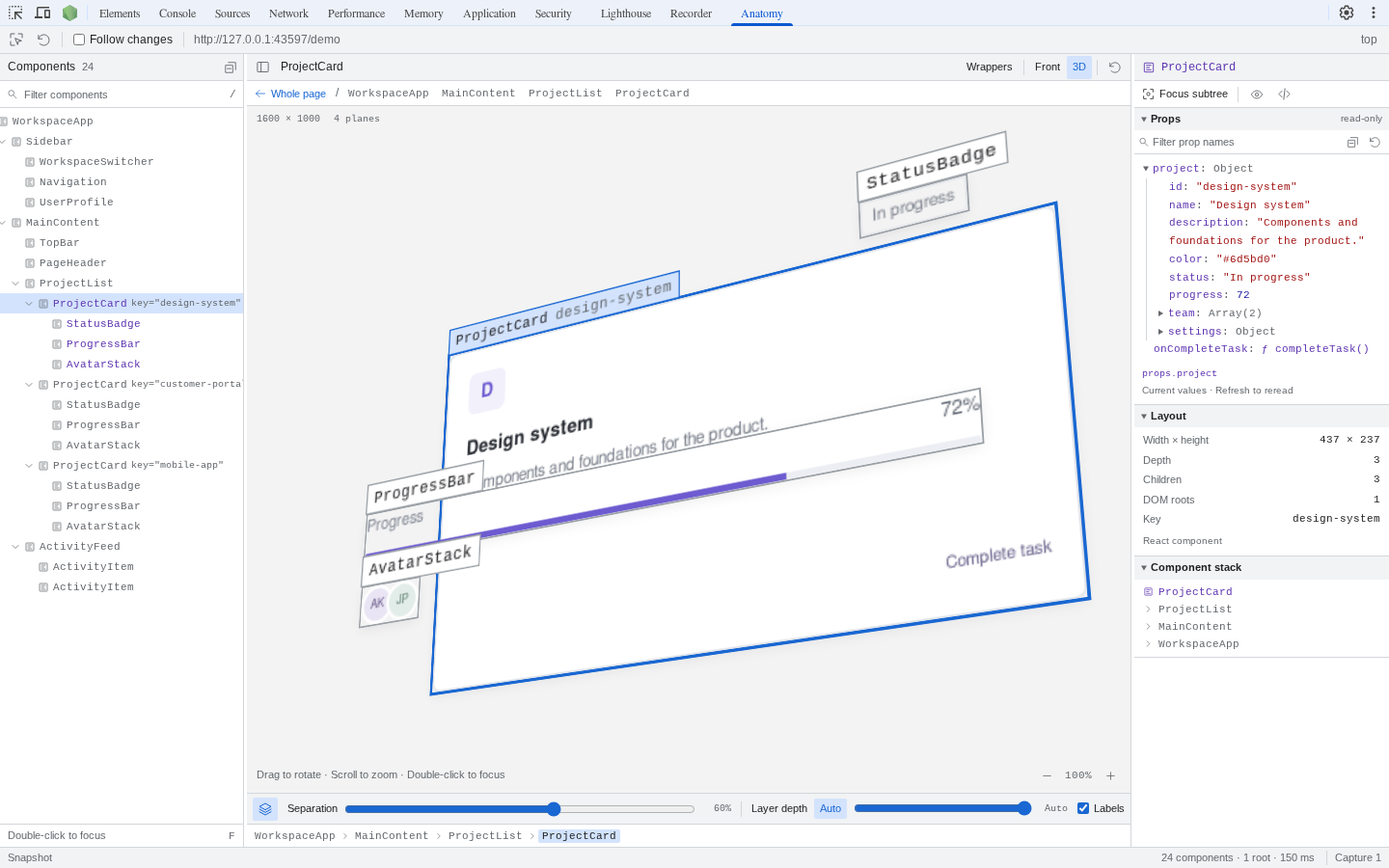
A focused subtree makes a compact pull request image: the parts, their nesting, and the selected component’s props in one view.
3. Take the screenshot
Section titled “3. Take the screenshot”Use your operating system’s screenshot tool to capture the Anatomy panel, or the part of it you need. If a before-and-after comparison helps, check out the base branch, capture the same view, and place the two images side by side yourself.
Before posting, look at what the image contains. Props and the reconstructed page can include real data from the environment you captured — names, emails, tokens in URLs. Use local or test data when you can.
4. Write the explanation
Section titled “4. Write the explanation”Describe the structure in a few sentences, in terms the reviewer can check against the image and the diff. For example, for a change to the sample app’s project cards:
### Structure

`ProjectList` renders one `ProjectCard` per project, keyed by `project.id`.This change moves the progress display into a new `ProgressBar` child,which receives `project.progress` and `project.color`.`StatusBadge` and `AvatarStack` are unchanged.Useful details to mention:
- the parent that renders the changed component, and how many instances appear;
- new or moved components, and where they now sit;
- props a component now receives, or no longer receives;
- the page state the screenshot shows, if it matters.
What a screenshot can’t show
Section titled “What a screenshot can’t show”The image is one capture of one state. It does not show other routes, empty or error states, or components that are imported but not rendered. It also doesn’t show source files: point reviewers to the files in the diff for that.